Component model
On the Layout tab, the Component model group includes the following tools for managing model objects that have been created in the Component Modeller application and are stored as GDL models in the database.
Plant Modeller uses Geometric Description Language (GDL) files to build component models. These GDL files can be located either in the library or in the project database, in the "Component Model" category. If the objects relate to a specific project and are modeled without parameters, they are usually stored in the project database, whereas parametric models that are used in multiple projects are usually stored in the library.
Edit

On the Layout tab, the Edit menu includes the following tools for editing existing objects and creating new ones.
Edit existing item: Parameter values | Component geometry | 3D space geometry
Create and use a new item: Parameter values | Geometry
Parameter values
You can edit the parameters of a piece of equipment or structural component. If the component has a hole request, the tool also tries to update the shape, the dimensions, and the location of the hole request.
Note: Editing the component model will affect all objects that use the same GDL. If the object has instance parameters, editing them will only affect that individual object instance.
Note: Although using this command on an object that does not have parameters opens the Component Modeller, you should not create new parameters in this view.
Do the following:
-
Select Layout tab > Component model group > Edit > Parameter values.
-
Select the object to edit, and press Enter.
-
If the object is stored in the library instead of the project, you are prompted whether to proceed, as any changes to the component model might affect multiple projects.
-
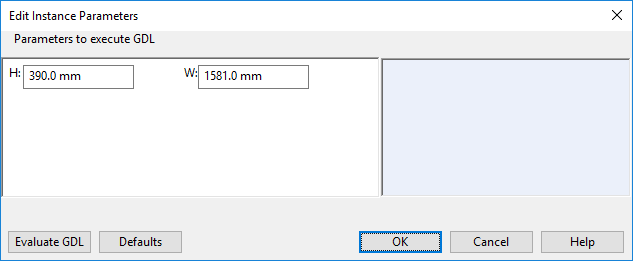
If the component model has parameters that can be instance parameters, the Edit Instance Parameters dialog opens.
Edit the values as required, click Evaluate GDL to show the changes in the model object, and click OK to accept the changes.
-
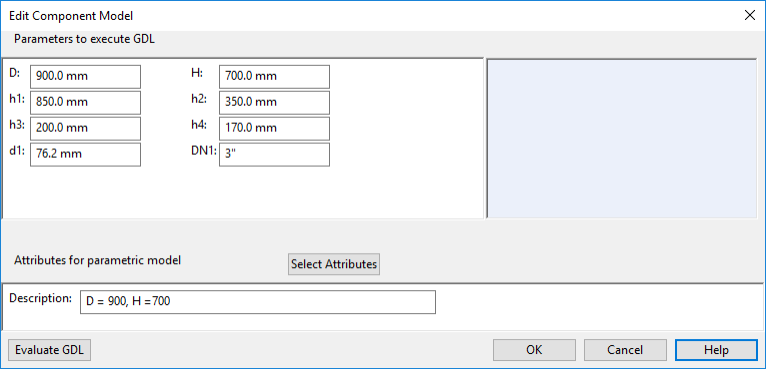
If the component model has only parameters that cannot be instance parameters, the Edit Component Model dialog opens.
Edit the values as required, click Evaluate GDL to show the changes in the model object, and click OK to accept the changes.

Component geometry
You can edit the geometry of a component in Component Modeller.
Note: Editing the component model will affect all objects that use the same GDL.
Do the following:
-
Select Layout tab > Component model group > Edit > Component geometry.
-
Select the object to edit, and press Enter.
-
If the object is stored in the library instead of the project, you are prompted whether to proceed, as any changes to the component model might affect multiple projects.
-
Use the Component Modeller application to make the required geometry changes, then save and close the model.
3D space geometry
You can edit the geometry of a 3D Space in Component Modeller.
Note: Editing the component model will affect all 3D Space objects that use the same GDL.
Do the following:
-
Select Layout tab > Component model group > Edit > 3D space geometry.
-
Select the object to edit, and press Enter.
-
If the object is stored in the library instead of the project, you are prompted whether to proceed, as any changes to the component model might affect multiple projects.
-
Use the Component Modeller application to make the required geometry changes, then save and close the model.
Parameter values
You can use an existing object to create a new object with different parameters. If the component has a hole request, the tool also tries to update the shape, the dimensions, and the location of the hole request.
Do the following:
-
Select Layout tab > Component model group > Edit > Parameter values.
-
Select the object to use as a template, and press Enter.
-
In the Edit Object Attributes, dialog, enter a description for the new object, and click OK.
-
Use the Component Modeller application to make the required parameter changes, then save and close the new model.
Geometry
You can use an existing object to create a new object with a different geometry. If the component has a hole request, the tool also tries to update the shape, the dimensions, and the location of the hole request.
Do the following:
-
Select Layout tab > Component model group > Edit > Geometry.
-
Select the object to use as a template, and press Enter.
-
In the Edit Object Attributes, dialog, enter a description for the new object, and click OK.
-
Use the Component Modeller application to make the required geometry changes, then save and close the new model.
Replace

You can replace the component model that a piece of equipment or a structural component in the model uses. If the component has a hole request, the tool also tries to update the shape dimensions and the location of the hole request.
Do the following:
-
Select Layout tab > Component model group > Replace.
-
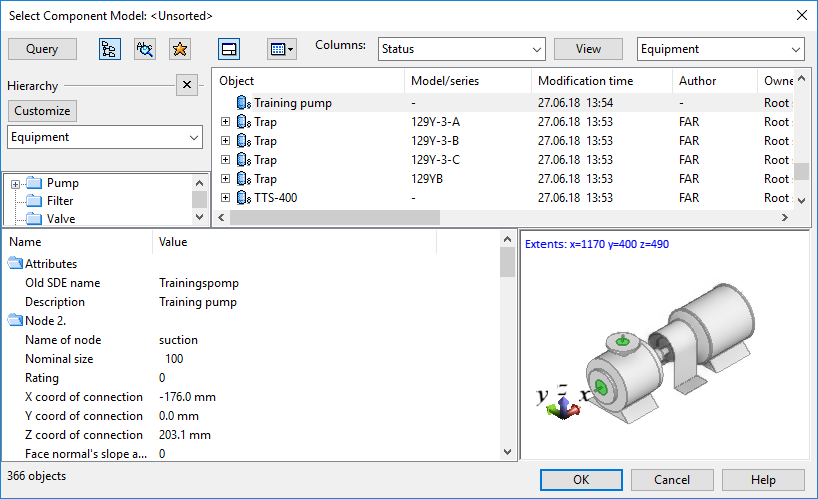
Pick the object to be changed, and press Enter to accept the selection. The Select Component Model object browser opens.
-
Select the new component model to be used, and click OK.
Generic component parameters
You can edit the parameters of a generic component model.
Prerequisites
-
Equipment added to the model from Layout > Insert > Equipment > Insert > Insert inline.
Do the following:
-
Select Layout tab > Component model group > Generic component parameters.
-
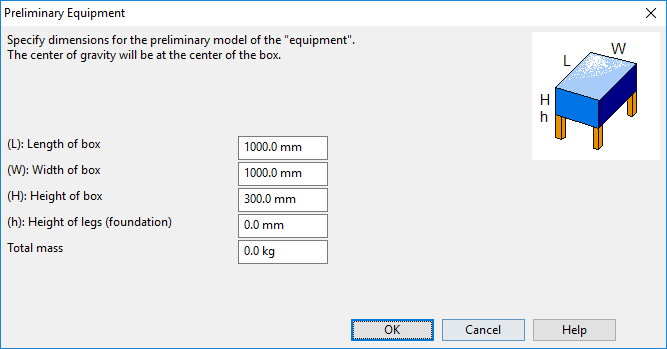
Select the object to edit, and press Enter to accept the selection. The Preliminary Equipment dialog opens.
-
Edit the values as required, and click OK. The Set Operations dialog opens.
-
Click Close.